
The Anatomy of a VoIP Call
A VoIP call is far more complex than picking up a traditional phone. Your voice is converted into thousands of tiny data packets that must travel through at least 11 different stages — from your phone, through cables, switches, routers, firewalls, your ISP, across the internet, through Melo Technology's servers, upstream carriers, and finally to the local exchange carrier that connects to the recipient.
Your Phone
IP Phone / Softphone
Ethernet Cable
Cat5e / Cat6
Network Switch
Managed / QoS
Router / Firewall
NAT, SIP ALG, QoS
Modem
Bridge Mode
ISP Network
Internet Provider
Internet Backbone
Peering / Transit
Melo Technology
SIP / Media Servers
Channel Partner
Upstream Carrier
PSTN / LEC
Local Exchange Carrier
Recipient
Destination Phone
Why does this matter?
Unlike a web page that can retry a failed request, voice packets are real-time and unrecoverable. If a packet arrives late or out of order, you hear choppy audio, echo, or silence. Every single component in the chain — from your Ethernet cable to your ISP's peering agreement — can introduce delay, jitter, or packet loss that degrades your call.
Where do problems actually come from?
Nine times out of ten, call quality issues originate in the customer-controlled portion of the network — stages 1 through 5 in the diagram above. Misconfigured routers, double-NAT, unmanaged switches, SIP ALG interference, and missing QoS rules are the most common culprits. Melo Technology is often the symptom, not the cause.
So, what makes up the ideal network configuration?
These are our five core recommendations. Each one addresses a specific, common cause of VoIP problems.
Bridged Modem + Dedicated Router
Set your ISP modem to bridge mode so it only converts the signal. Use a separate, dedicated router to manage your network.
Why this matters
Without bridge mode, your modem and router both try to manage traffic (double-NAT), which confuses VoIP phones and causes dropped calls, one-way audio, and registration failures.
Disable SIP ALG
Turn off the "SIP ALG" setting in your router. It's usually found under firewall or NAT settings.
Why this matters
SIP ALG tries to "help" by modifying VoIP packets, but it almost always breaks them. Disabling it lets your phones communicate directly with Melo's servers without interference.
Dedicated VLAN for VoIP
Put all your phones on a separate virtual network (VLAN) from computers, printers, and other devices.
Why this matters
When phones share a network with computers downloading files or streaming video, voice packets get stuck behind large data transfers. A separate VLAN gives voice traffic its own lane.
QoS — Prioritize Voice Traffic
Enable Quality of Service (QoS) on your router and switch so voice packets are always sent first, even when the network is busy.
Why this matters
Voice calls need a steady, uninterrupted stream of tiny packets. QoS ensures that even during heavy internet use, your calls stay clear and don't compete with email, file downloads, or video streams.
Open Required Firewall Ports
Make sure your firewall allows traffic on ports 5060 (SIP), 5061 (encrypted SIP), and 10000–20000 (voice audio).
Why this matters
If these ports are blocked, your phones can't signal the server or transmit audio. This is one of the most common causes of phones that register but have no sound.
Recommended Configurations
These setups provide the best call quality and reliability. Each one follows the principle of a single, clean network path with full administrative control.
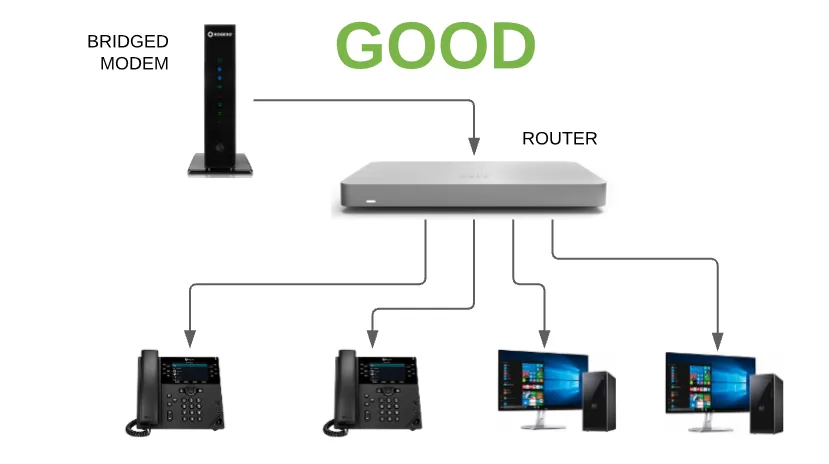
Small Office — Direct from Router
Bridged modem connects to a dedicated router. Phones and computers connect directly to the router. Simple, clean, and reliable for up to 4–6 devices.
Why this works
With the modem in bridge mode, NAT is handled by a single dedicated router. This eliminates double-NAT, gives you full control over QoS, firewall rules, and SIP ALG settings — the three biggest factors in call quality.
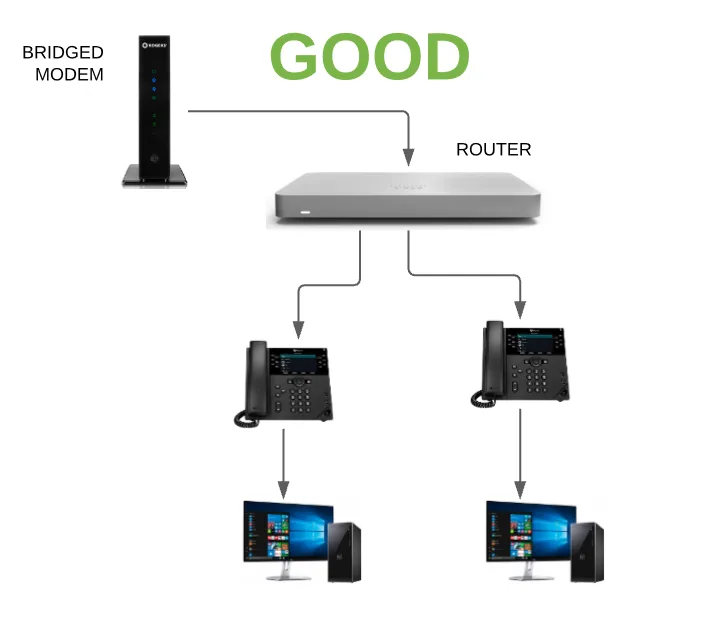
Small Office — Alternate Layout
Same architecture with bridged modem and dedicated router. Each phone can share a port with a computer using the phone's pass-through Ethernet port.
Why this works
The pass-through port on the phone keeps the network topology flat — one router, no extra switches. The phone prioritizes its own voice traffic before passing data through, which naturally preserves call quality even on a shared port.
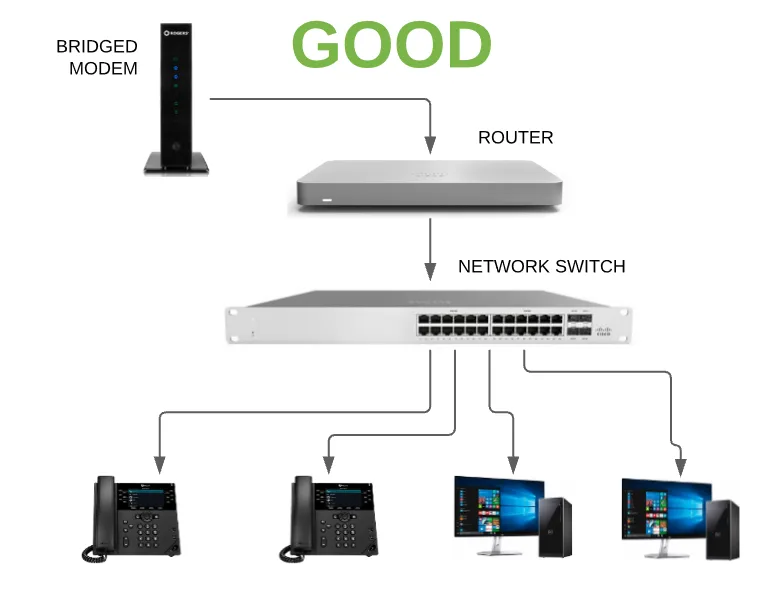
Medium/Large Office — With Network Switch
Bridged modem → router → managed network switch. All phones and computers connect to a single managed switch. This scales to dozens of devices while maintaining QoS.
Why this works
A managed switch supports VLANs and port-level QoS, letting you isolate voice traffic from data. Every packet follows a single, predictable path from phone to router — no extra hops, no unmanaged segments, and no surprises during a call.
Configurations to Avoid
These setups introduce unpredictable behavior into the voice path. Even if calls seem to work initially, these configurations cause intermittent issues that are difficult to diagnose.
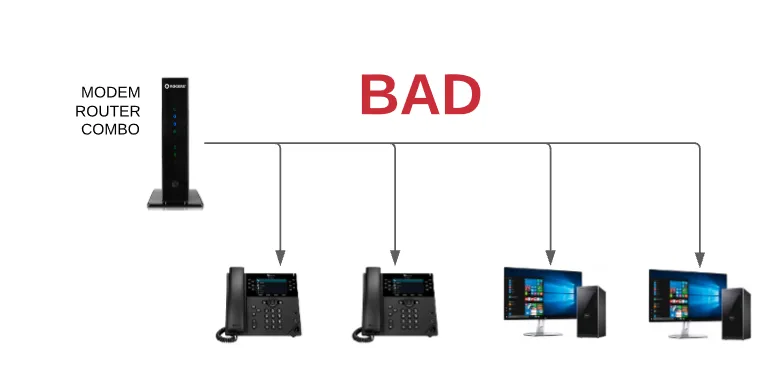
Modem/Router Combo — No Bridging
Using the ISP's modem/router combo without bridge mode creates double-NAT, causing registration failures, one-way audio, and dropped calls.
Why this fails
When two devices both perform NAT (the combo modem and your router), SIP packets get their addressing rewritten twice. The VoIP server can't find the correct return path, leading to one-way audio, failed registrations, and ghost calls. You also lose the ability to configure QoS or disable SIP ALG on the ISP's device.
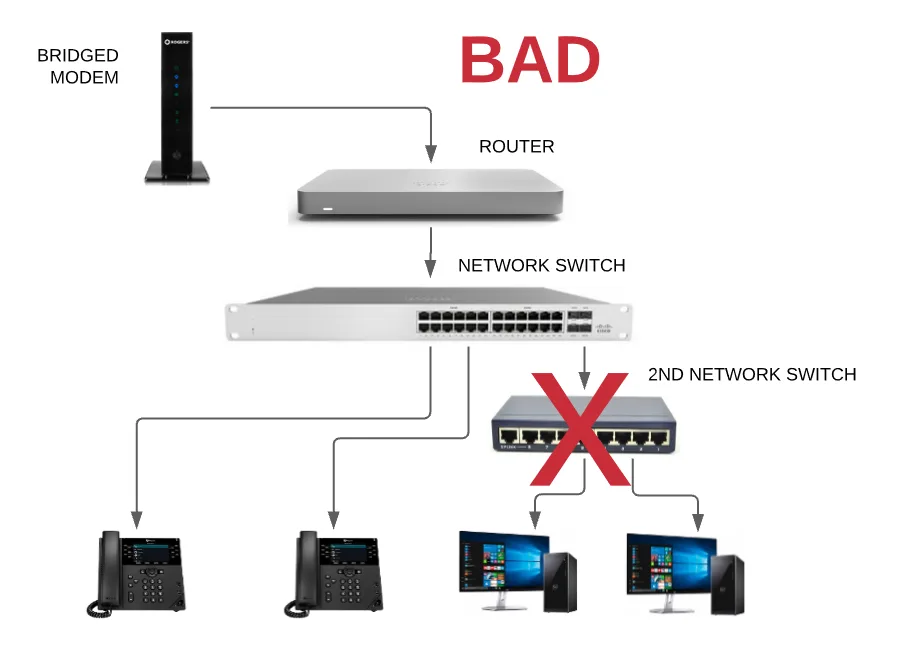
Unmanaged 2nd Switch in the Network
Adding a cheap unmanaged switch between the main switch and devices introduces packet loss, jitter, and creates an uncontrolled network segment.
Why this fails
An unmanaged switch has no QoS awareness — it treats a voice packet the same as a large file download. During peak traffic, voice packets queue behind data packets, introducing jitter and delay. Even 20–30ms of added jitter makes conversations noticeably choppy.
Cascaded Switches — Extended Runs
Daisy-chaining switches degrades signal quality. Every additional hop increases latency and the chance of packet loss on voice calls.
Why this fails
Each switch in the chain adds store-and-forward latency and another potential point of failure. With three or more switches daisy-chained, total added latency can exceed 50ms — enough to cause noticeable echo and overlap. Troubleshooting becomes guesswork because packet loss could originate at any hop.
Firewall & Port Requirements
Ensure your firewall allows these ports for proper SIP signaling and voice audio.
| Protocol | Port | Purpose |
|---|---|---|
| UDP / TCP | 5060 | SIP Signaling |
| TLS | 5061 | Encrypted SIP Signaling |
| UDP | 10000–20000 | RTP Media (Voice Audio) |
Quick Setup Checklist
Follow this checklist to ensure your network is properly configured for VoIP.
Set ISP modem to bridge mode
Connect a dedicated business-grade router
Disable SIP ALG on the router
Enable QoS and prioritize VoIP traffic (DSCP EF)
Use a managed network switch (not unmanaged)
Open SIP ports 5060 and 5061 (UDP/TCP) on your firewall
Open RTP ports 10000–20000 (UDP) for audio
Test registration status shows 'Registered'
What each leg of the call does
A quick reference for every stage your voice data passes through, from your desk phone to the person you're calling.
Pro Tip
You can test your call completion, quality, and echo by dialing *52 from your Melo registered extension.
Need help configuring your network?
Our team can assess your current setup and recommend the ideal configuration for crystal-clear VoIP calls.