
Step 1: Open the app store
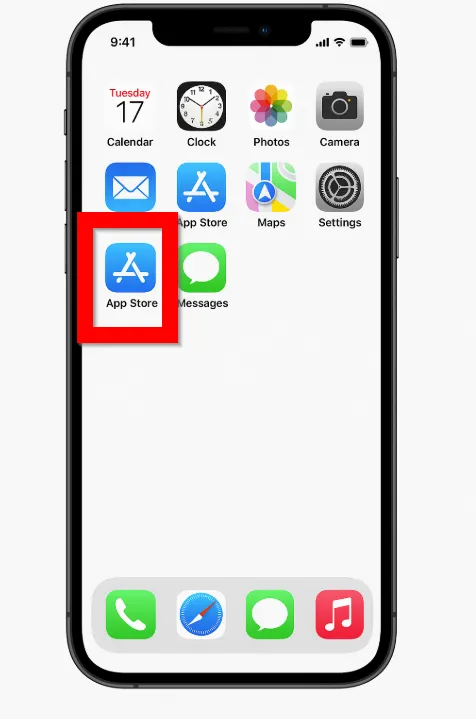
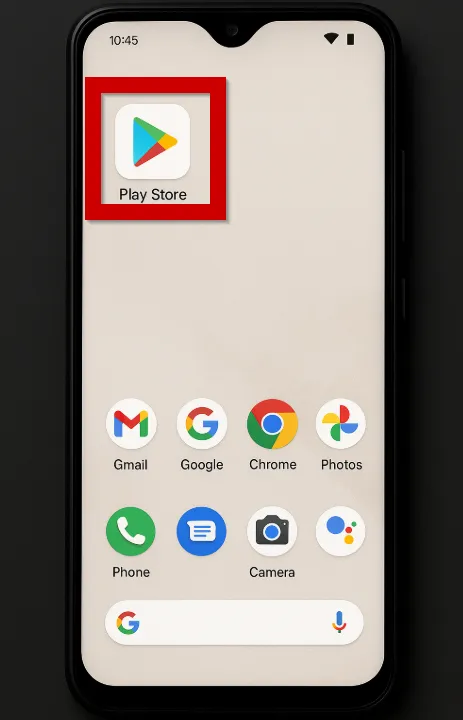
On your phone, tap the app store icon for your device.
App Store (Apple)
Play Store (Android)
You'll need the activation email from support@melotel.com with your personal QR code. Don't have it yet? Reply to your provisioning email or call us at 1-888-635-6835, option 3.
On your phone, tap the app store icon for your device.
Once the store opens, tap the search bar so you can look up the app.
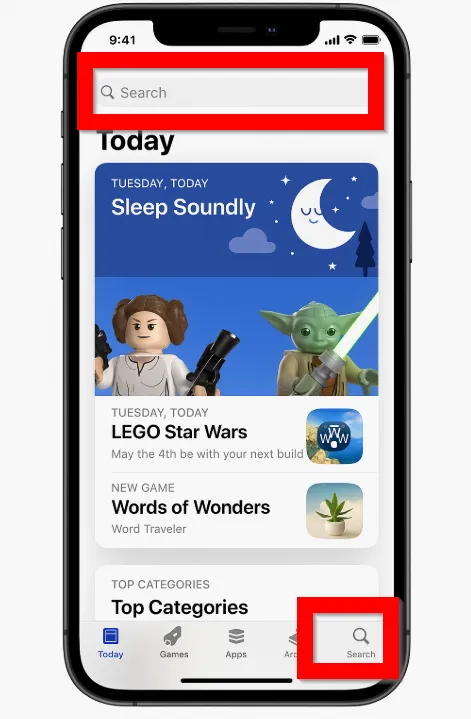
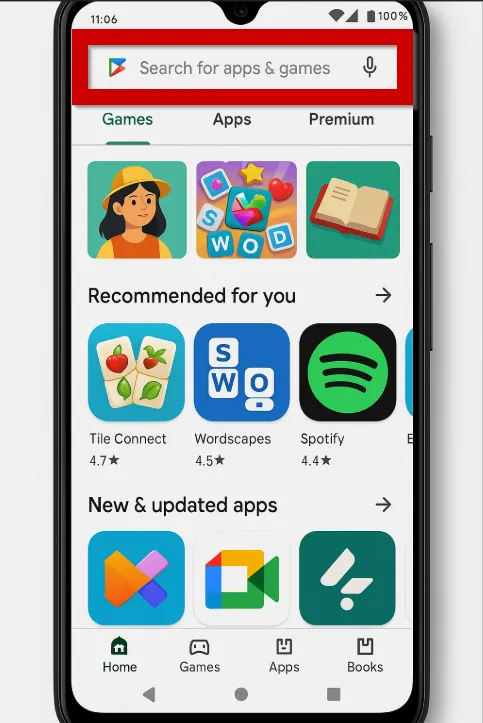
Type "Softphone" and install the Cloud Softphone app by Alien Licencsing GmbH.
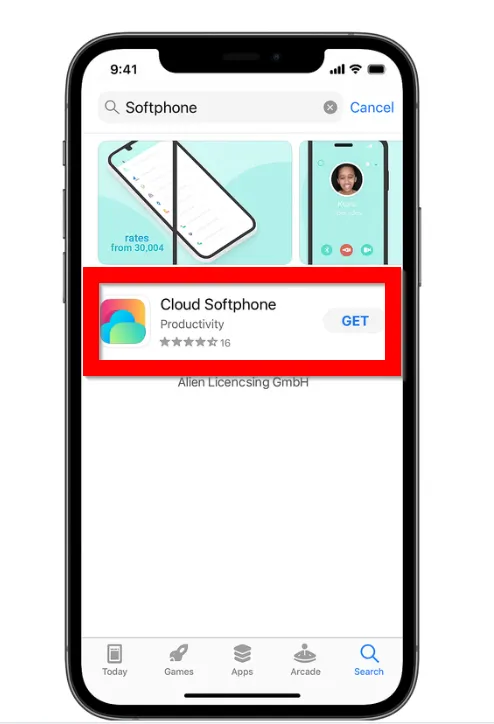
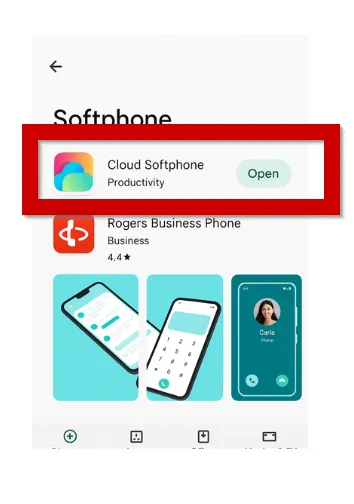
Launch Cloud Softphone and tap the Scan QR option below the Sign In button.
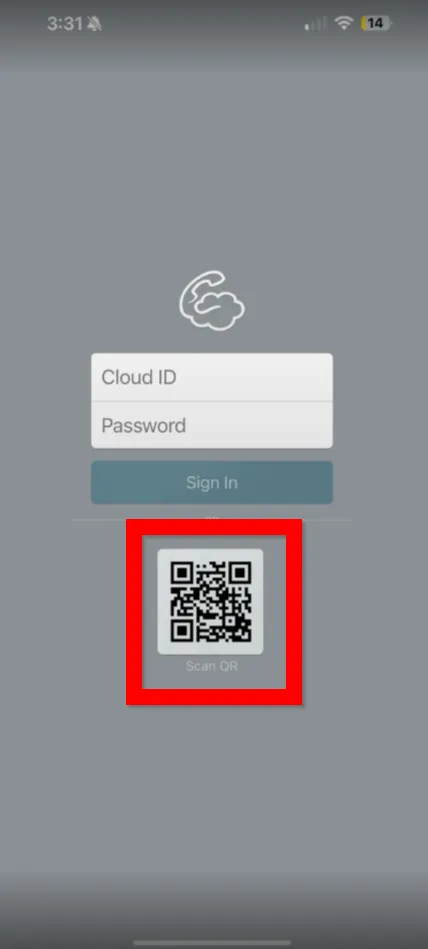
Use your phone's camera to scan the QR code in the activation email we sent you. Don't scan the example below — it's only a reference of what your email will look like.
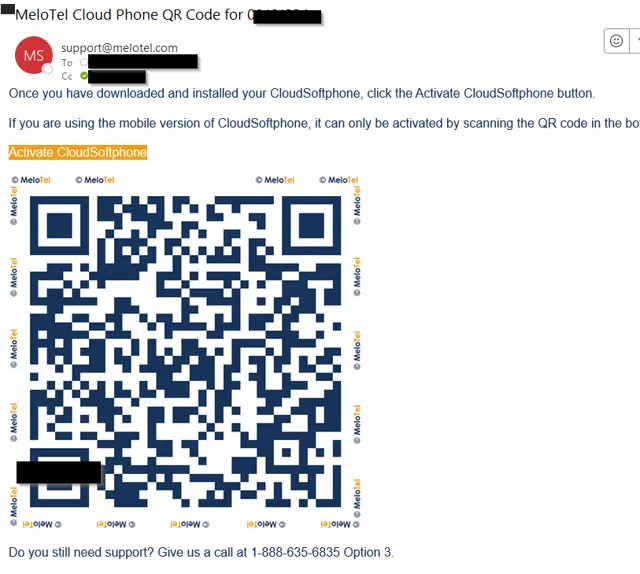
Example email — your QR code will be different. Do not scan this image.
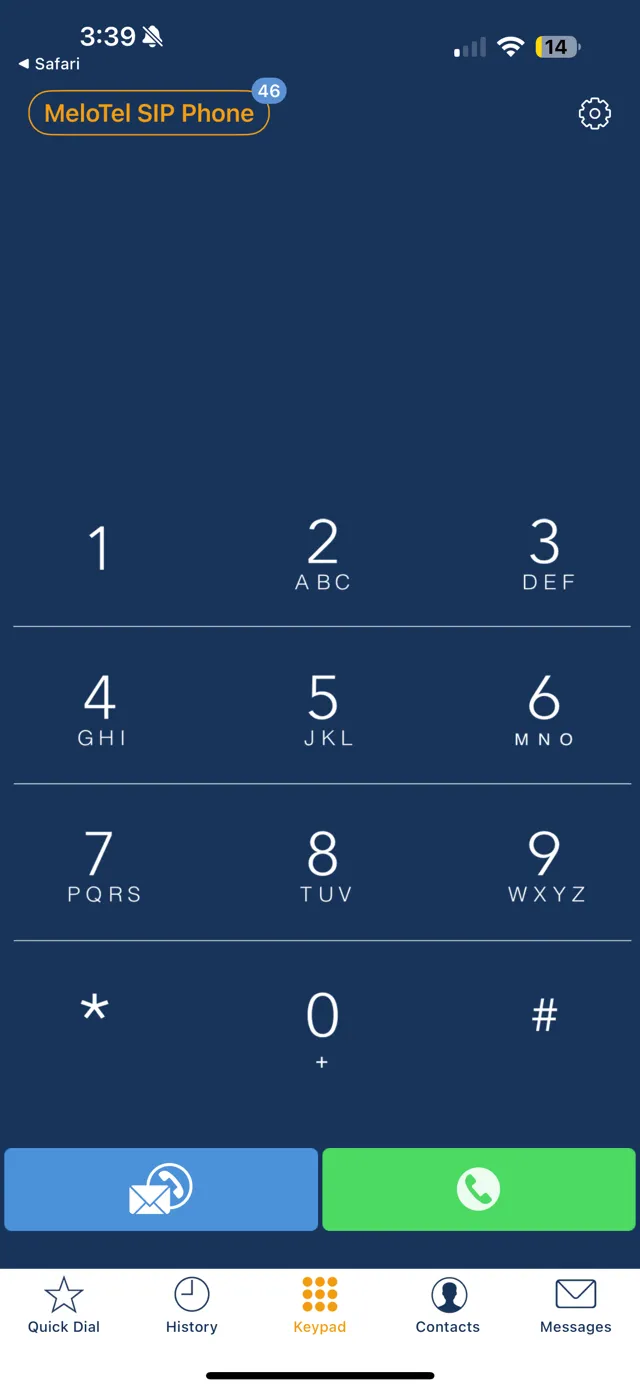
After a successful scan, the app opens to the dial pad. You can now make and receive calls from your Melo extension on your phone.
Make sure you're scanning the QR code from the email we sent you — not the reference image above. Each QR code is unique to your extension. If yours has expired, our team can resend it in a moment.
Our support team can resend your QR code or walk you through setup over the phone — give us a call any time.